Guide · 5 minutes

From OBS to your editor's hands, on autopilot

Set it up once. From then on, every recording uploads itself — while you're still live — and your editor downloads it the moment you go offline. Here's the whole thing, with screenshots.

01

Create your account

Go to manageeditors.com/signup, enter your email and a password, and verify the email we send you (you can't upload until it's verified — it keeps the platform clean). No credit card.

The free plan gives you 50 GB and 3-day retention, enough to run the full flow with real streams before deciding anything.

02

Download the watcher

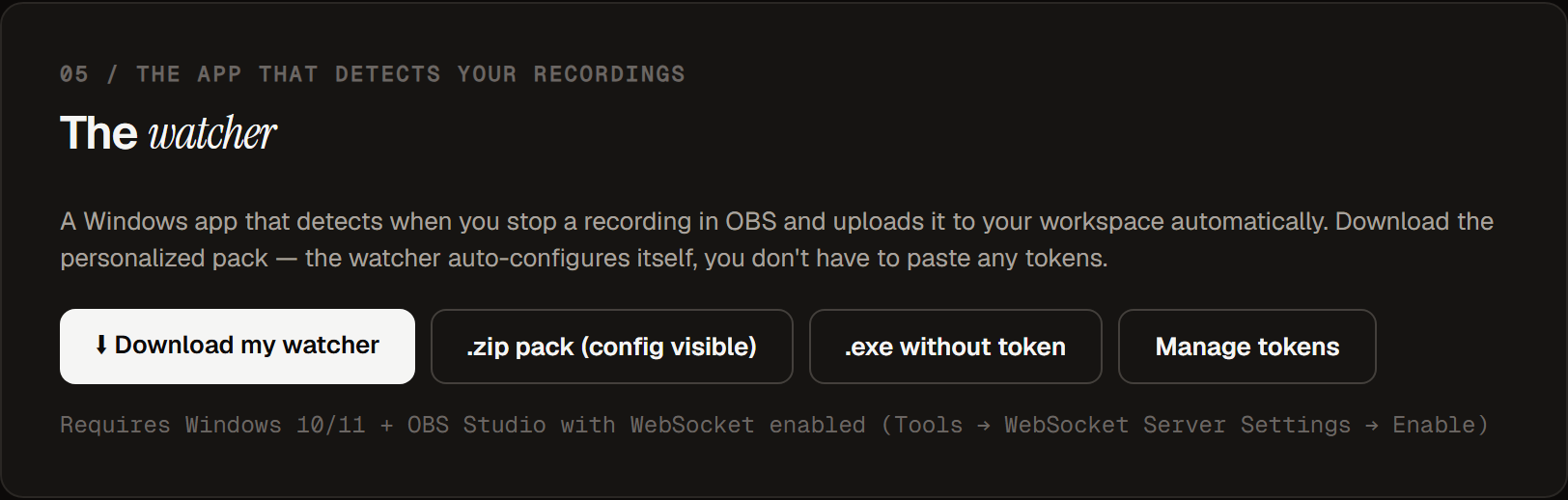
The watcher is a small Windows app that watches OBS and does the uploading. Get it from Settings → The watcher in your dashboard:

Settings page showing the watcher download buttons

SETTINGS → THE WATCHER · the first button is the one you want

"Download my watcher" gives you a .exe personalized for your account — it configures itself on first run, there are no tokens to copy and nothing to paste.

📱 On your phone right now? The watcher runs on your Windows PC. We email you the download link when you verify your account — open that email on the PC and click. (Or hit "Email me the link" in the dashboard.)
03

Run it once

Double-click the downloaded .exe. Windows SmartScreen will probably warn you the first time ("Windows protected your PC") — that's standard for any new app: click More info → Run anyway.

The watcher then:

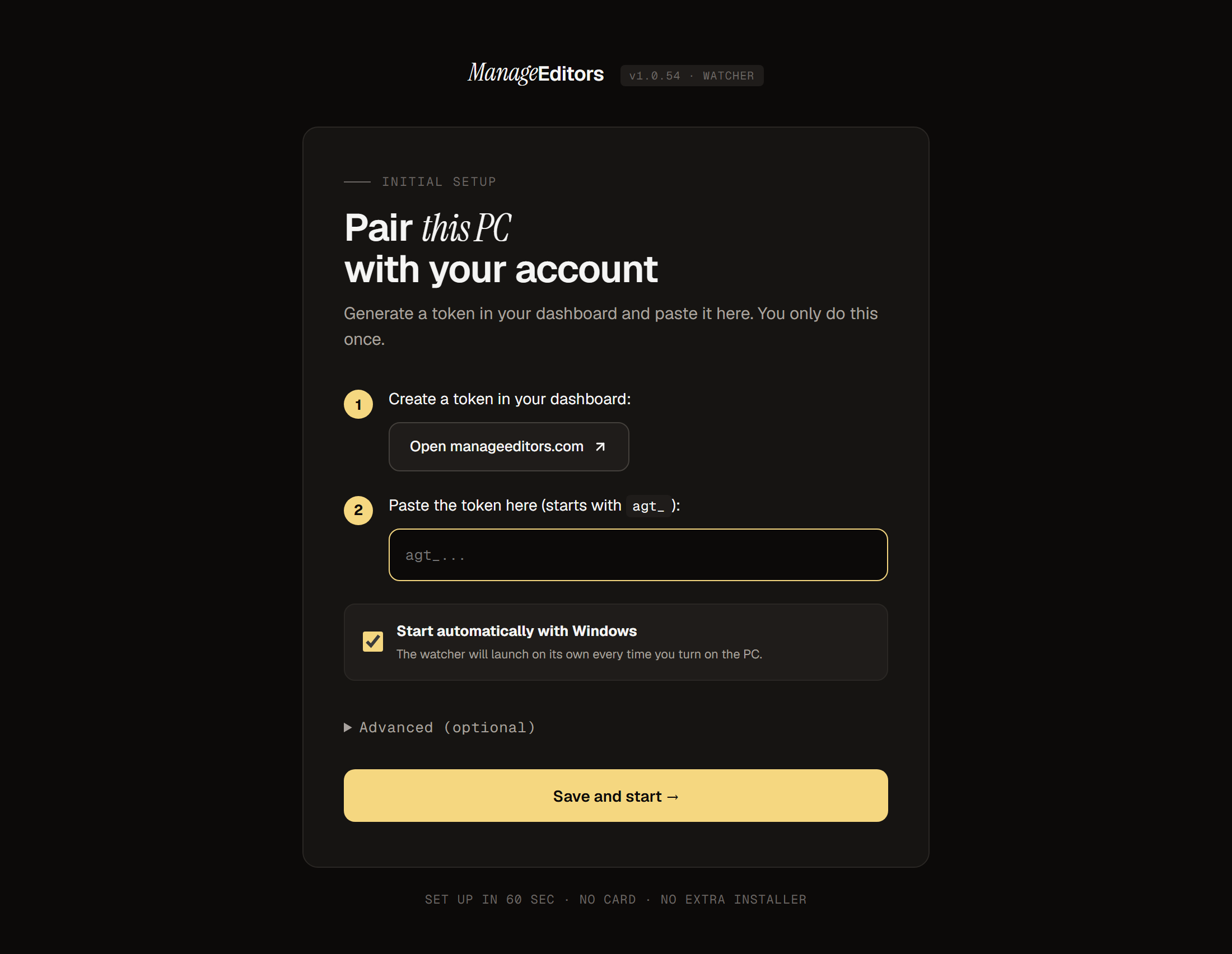
If you grabbed the plain .exe instead (the one without a token), a one-time setup page opens in your browser — paste a token from Settings and you're done:

The watcher's one-time setup wizard asking for an agent token

ONE-TIME SETUP · only appears with the non-personalized .exe

04

Let it see OBS

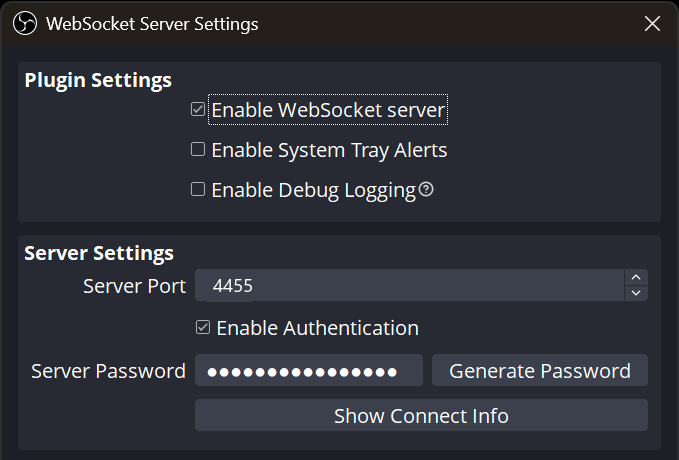
The watcher talks to OBS through its built-in WebSocket (OBS 28+, nothing to install). One checkbox:

  1. In OBS: Tools → WebSocket Server Settings
  2. Tick Enable WebSocket server → Apply
OBS WebSocket Server Settings dialog with Enable WebSocket server ticked

OBS → TOOLS → WEBSOCKET SERVER SETTINGS

Port and password? Don't touch them — the watcher reads OBS's config and connects by itself. The tray icon turns green when it's connected. Full detail in the OBS WebSocket guide.

05

Stream. That's it.

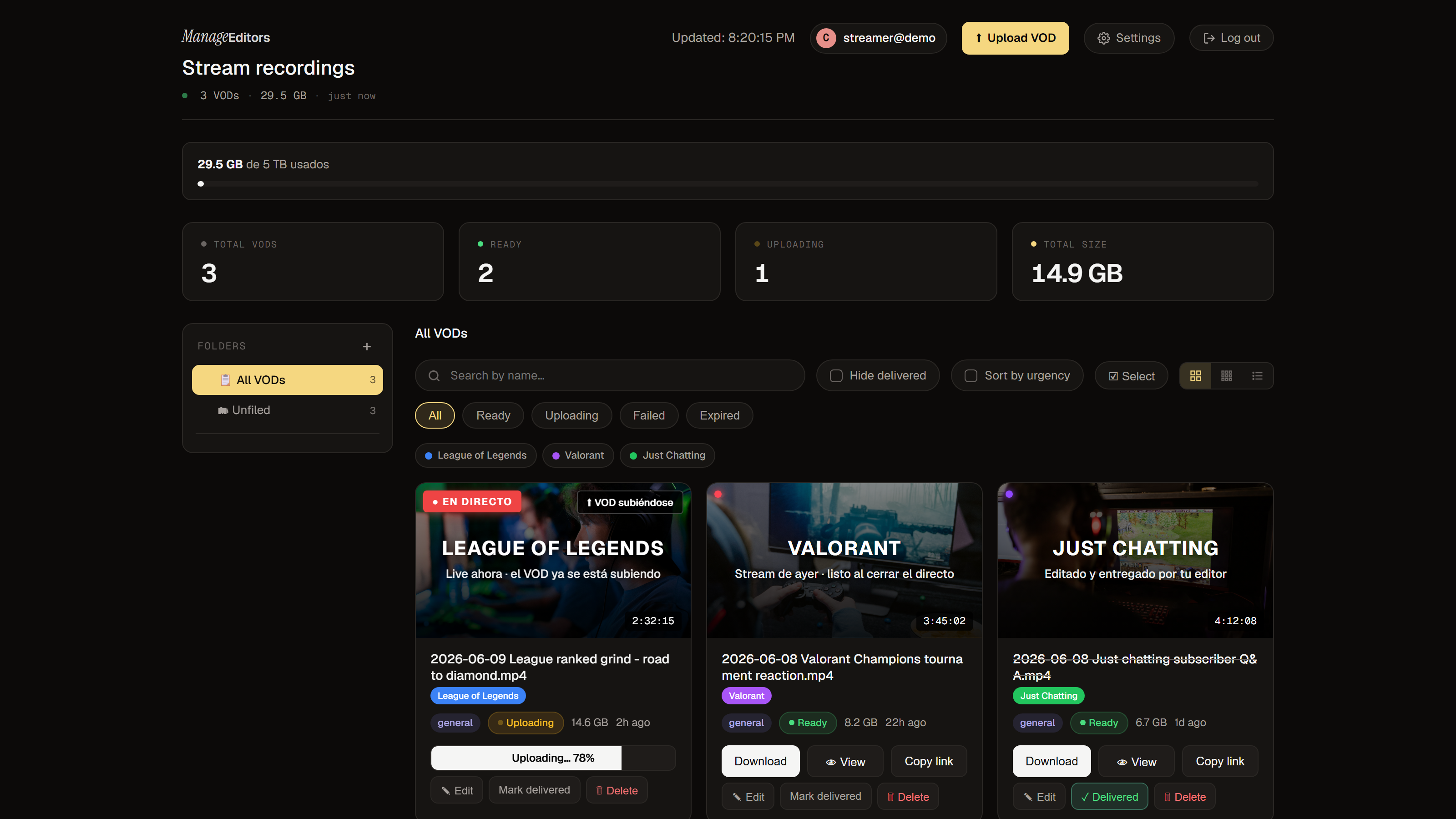
Hit record (or just go live — the watcher can start the recording for you). The VOD starts uploading while you're still streaming; when you stop, only the final piece is left:

Dashboard showing a VOD uploading live during a stream, another ready to download and one delivered

LIVE NOW + UPLOADING · YESTERDAY'S READY · LAST WEEK'S DELIVERED

Every VOD gets a thumbnail, duration, tags and an expiry date based on your plan. Your editor downloads at full speed and marks it Delivered when the edit ships.

The options that matter

Everything lives in the tray menu (right-click the "M" icon):

MOCKUP — YOURS SHOWS LIVE STATUS AND UPLOAD PROGRESS

+1

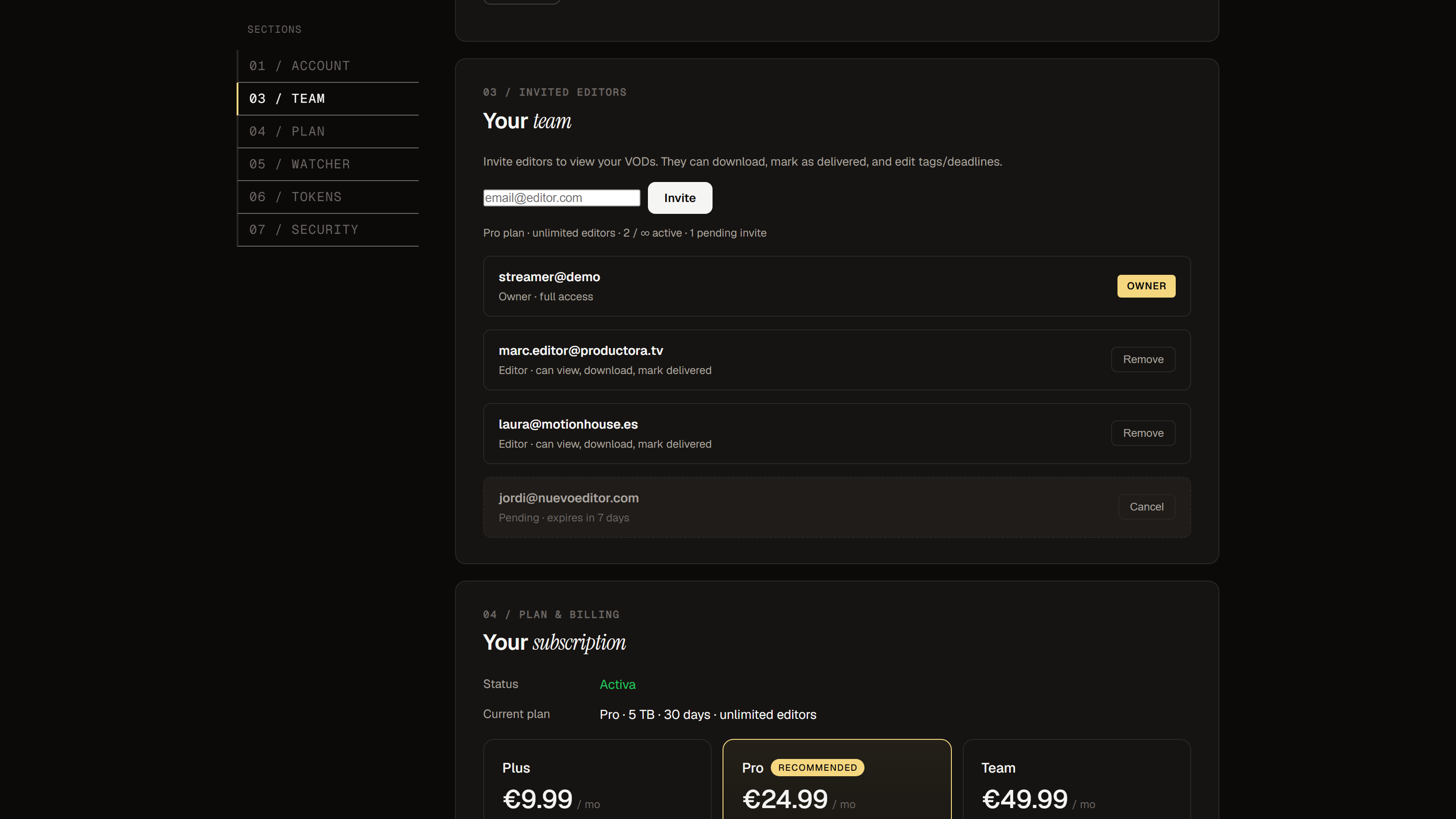
Invite your editor

Settings → Team, type their email, done. They create their own password and see your workspace: view, download, tag and mark VODs as delivered. They never touch your billing.

Team settings showing workspace members and a pending editor invitation

SETTINGS → TEAM · members and pending invites

FAQ

Quick answers

Is ManageEditors free?
There's a free plan with 50 GB and 3-day retention — enough to try the full flow with real streams. Paid plans (Plus, Pro, Team) raise storage to 2–10 TB and retention to 14–60 days. See pricing.
Windows says "Windows protected your PC". Is it safe?
Yes. SmartScreen warns about any new unsigned app. Click More info → Run anyway. The watcher only talks to manageeditors.com, and its auto-updates are cryptographically signed (Ed25519) — it refuses any binary without a valid signature.
Does it upload while I'm still live?
Yes — that's the default. The recording uploads in the background while OBS is still writing it; when you end the stream only the final part is left, so your editor usually has the full VOD minutes after you go offline.
Will uploading hurt my stream's bitrate?
Cap the upload speed from the tray (⚡ Upload speed) or web Settings. Pick the preset matching your connection and the watcher never exceeds it.
What if my connection drops mid-upload?
Nothing is lost. Uploads are chunked and progress is saved to disk, so it resumes exactly where it left off — even after a reboot or a crash.
Which formats are supported?
mkv, mp4 (normal and hybrid), mov, flv, avi. Use whatever OBS writes by default — the watcher handles the header rewrites OBS does when finalizing files.
Do I need OBS open for uploads to work?
For automatic detection, yes (it listens to OBS via WebSocket). But you can also point the watcher at a folder from web Settings — anything that lands there uploads, OBS open or not. That covers plugins like Source Record.
Can I get clips, not just full VODs?
Yes. Enable OBS's Replay Buffer (Settings → Output). Hit Save Replay (hotkey or Stream Deck) and the clip uploads automatically, tagged as a clip.
What can my editor see and do?
You invite them by email; they create their own password. They can view, download, tag, rename and mark VODs as delivered in your workspace. They never see billing or account settings.
How long are VODs kept?
3 days on Free, 14 on Plus, 30 on Pro, 60 on Team — then they're deleted automatically. ManageEditors is a hand-off pipeline to your editor, not cold storage.
My ISP blocks Cloudflare and transfers fail. What now?
The watcher detects the block and reroutes uploads through our server automatically. Nothing to configure. (Yes, this was built for Spain's LaLiga blocks.)
Can I use it on more than one PC?
One PC per account on Free/Plus/Pro; the Team plan allows unlimited PCs (one token per machine, each can auto-tag its uploads — handy for esports orgs).
How do I uninstall it?
Right-click the tray icon → Quit, then delete %LOCALAPPDATA%\ManageEditors. That's everything — there's no installer, no services, no leftovers beyond the autostart entry which is removed when you quit with autostart disabled.
Your next VOD can upload itself

Free plan, no card. Set up in the time it takes OBS to update.

Create your account →